More Phone Speed and Battery Life! How to DIY Tune Up Android Phones (and Tune up Apple Phones too.)
by Ed
I had a moment recently. It wasn’t ‘flash of genius’ type insight, but it really helped me frame cell phone ownership: Cell phones are little cars.
Now that I type it, it doesn’t sound as insightful. Let me explain.
My phone had been running laggy and taking to periodically using all of the battery in, like, 30 minutes. I had begun shopping and talking myself into more and more expensive options.
I had done all of this online; hadn’t even gone into a store – and already I convinced myself that I needed a Google Pixel 2 and that an extra 15 bucks a month on my bill was just fine and that $200 down was really a deal when you consider the phone is so great and … and…
So yeah, I didn’t do that. Because phones are like cars.
Cars are really important. We often need them do our jobs, get food, coordinate our lives and our kids’ lives. They are costly and wear out over time. They also have a style factor and even driving a nice one starts to feel old and outdated after a few years. They are also an atrocious investment, lose their value very quickly and have ongoing costs associated with them too.
You see where I’m going now: phones, like cars, are pretty necessary, cost us a lot of money over time and we will always take a net loss on their value. Add in a vanity factor to update more regularly and stay fashionable and the parallels get deeper (and more costly).
But most houses have only 1-2 cars and they last for years. Phones are like cars that even kids can own and they wear out faster. This is a business model to get behind if you’re a shareholder- or run screaming from if you’re a consumer.
But when your phone gets buggy, like mine did – what can you do? Just like cars need regular maintenance (we don’t just replace them, right?) phones need tune-ups too. There are things you can do to make your phone run faster and help your battery life last longer.
I’ll break it down for you!

My current phone is a Moto X, first generation (4 years old) bought used for $85 on Kijiji. It served me very well for last year but started to get glitchy before Christmas. I’ve also owned iPhones and Apple products are still the phones for Robin and our 14-year-old.
So what I’m saying is, I’m cell phone bilingual and I’m going to talk tips for both Apple and Android products.
How to DIY Tune Up Android phone (and Tune up Apple Phones too.)
Top things to try to get your Apple or Android product running like new again.
1) Clear some Memory:
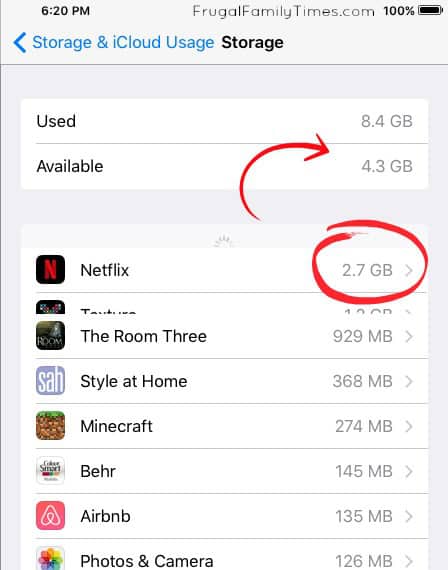
A full phone can be a laggy phone and also get in the way of important software updates. On Apple products, go to Settings > General > Storage and iCloud usage. On Android, Settings > Storage. Have a look at how much Available memory remains. If things look like their getting tight (less than 1GB remaining is my personal threshold), then try these steps:
Apple:
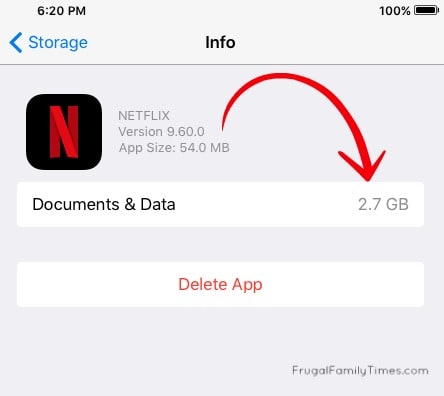
- Click Manage Storage. Your iPhone will now list all the apps you have in order of the biggest memory usage.
- If you have a lot of music, movies or photos, you can maybe get a bit ruthless and delete stuff you don’t need.
- Google Photos (Apple and Android) will automatically back-up your memories to your Google Account (you have one of those right?) and then offer to clear the photos off your phone to save space.
Android:
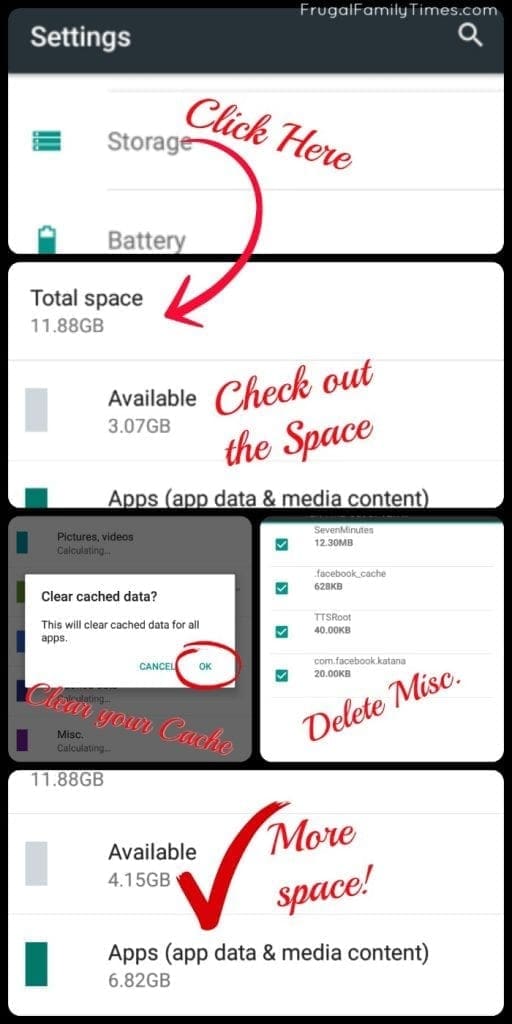
- Android storage screen already shows how much space is being used by what types of things.
- From here, I suggest tapping on:
- Downloads (clear/delete that stuff),
- Cached Data (ditto – clear it)
- and also use Google Photos to back up photos/video to your Google Account to save that space.
2) Scrap some Apps:
Both Apple and Android usually have several built-in Apps that you can’t get rid of. But there are still many that you can delete:
- Scroll through your apps and honestly ask yourself if you use it anymore. I once kept Angry Birds installed because I had three-starred almost every level in the game and was soooo close to that final few stars. That sucker was hogging nearly 1GB of memory, was constantly filling my cache memory with ads and generally not being worth the phone lag it was causing.
Apple:
- On the home screen, touch and hold the offending App till it gets all jiggly. Tap the small (X) that appears in the corner of the App icon to make it uninstall.
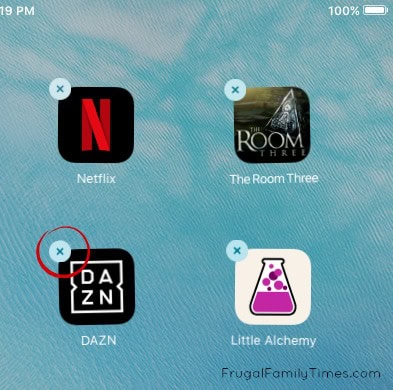
Delete stuff you don’t need/use anymore and save space for functionality.
Android:
- You’ll need to go to the App menu, then touch and hold the App icon and drag it to the ‘Uninstall’ box that appears on your screen.
- Some Android products allow you uninstall Apps from the home screen, but on many that will just remove the shortcut.
- If in doubt, go into Settings> Storage >Apps and use the direct “Uninstall” button for the App.

3) Back-Up, Reset And Restore:
This is not for faint-hearted, but for my battery-sucking, slow, 4-year-old phone, it was the silver bullet that made it run like new.
Please do all the steps and definitely don’t do the reset part until you are certain the backup is complete.
Apple:
- We’ve always done this with a computer, but if you want to pay for some iCloud storage space, you can do it that way too.
- Connect your phone to a computer and use iTunes to create a backup. Apple has some great visuals so check them out here.
- When you can clearly see that a current back-up exists and is complete, unplug your phone, go to Settings> General> Reset and select Erase All Content and Settings.
- It is the real deal and your phone will have you input your passcode and confirm that you really want to do this. You have a back-up – you can do it!
- After your phone resets, connect it to your computer again and follow Apple’s Steps to Restore.
- Everything will be back, but your phone will likely run cleaner, faster and just better.
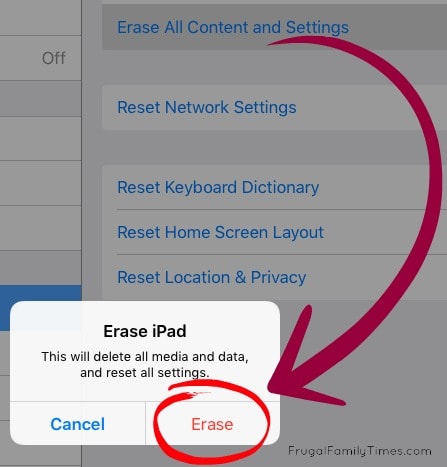
You’ve been warned.
Android:
- Android is a little less easy, but the results can be even better (*this could be a motto for all Android products really).
- There isn’t a nice “Back everything up Here” method that I’ve found that is free and the same for everything.
- You can send most of your contacts, app and settings data to your Google Account by going to Settings> Backup and Reset and making sure you have an Account specified.
- Double check that your Contacts are linked to your Google Account and finally do that thing with Google Photos where it backs up all your images and video to your Google Account.
- Just 3 easy steps with probably 10 substeps! Android friends – it is all worth the effort.
- You can now go to Settings>Backup and Reset>Factory Data Reset.

When your phone is reset and you have gone through the set-up and reinstalled anything you need, it will also run faster, cleaner and smoother than it did before.
Will this keep your phone running forever? Probably not. Batteries eventually wear out, but the good news is, lots of places replace them at pretty affordable prices. (And there is that Apple battery deal) And the truth is, the cell phone arms race is hitting a point where most of the Apps people use can run pretty well on phones that are several models old.
How old is your phone? Can anyone beat my 4-year-old, used MotoX?
This is just one of our posts about making technology more affordable. Let’s keep our tech from costing us a bundle and filling up our landfills! You can read more of our tips here.

Ed Hicken is a DIY Creator with over 30 years of experience, a Financial Educator and a talented home cook.